Why Is My Wi-Fi So Slow at Night? 9 Fixes That Actually Work
On this page
- First, check whether it is really a night problem
- Your router is probably in the worst spot in the house
- Try the other band
- Your neighbours are on your channel
- Something in your house wakes up at 9 pm
- Turn it off and on again — properly
- Is someone else on your Wi-Fi?
- The cable test settles it
- What to say to your provider
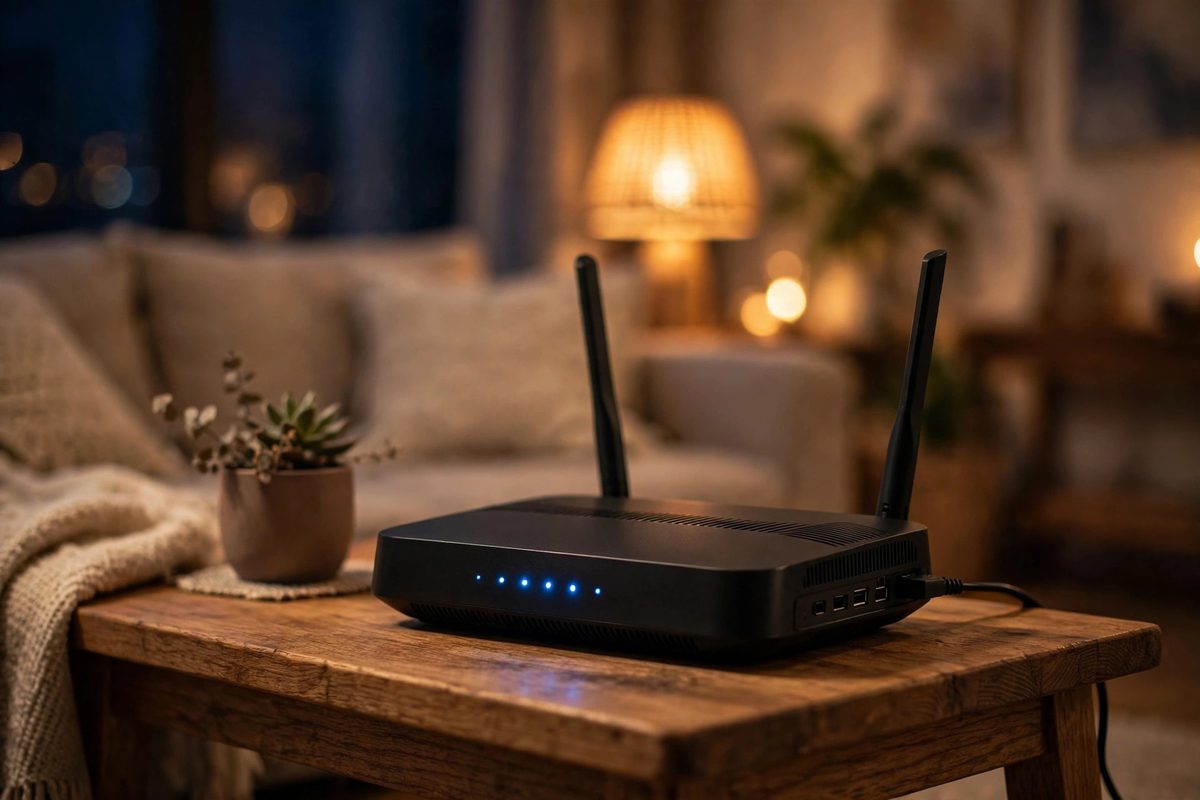
It usually starts the same way. The show you have been watching all evening suddenly drops to a blurry mess, the little loading circle spins, and your video call freezes on the worst possible face. In the afternoon, everything was fine. Nights are different for a reason — and in most homes the fix takes ten minutes, not a new router. Work through these in order. In our experience, one of the first five solves it.
First, check whether it is really a night problem
Before changing anything, run a speed test twice: once in the afternoon, once when the slowdown happens. Same device, same spot, over Wi-Fi. fast.com is the quickest — one click, no sign-up — or use speedtest.net. Write both numbers down.
If the night result is much lower, the problem is real and time-based, which points to congestion or something in your home switching on at night. If both results are equally bad, the time of day has nothing to do with it, and you should look at your router position and your plan speed instead.
Your router is probably in the worst spot in the house
Wi-Fi is radio. A router stuffed inside a TV cabinet, wedged behind the television, or sitting on the floor in a corner loses a big share of its signal before it ever reaches you. Put it out in the open, roughly in the centre of your home, about waist-to-chest high, away from thick walls, mirrors and metal objects.
Keep it away from the microwave, baby monitors and cordless phones too. Those use the same 2.4 GHz band as your Wi-Fi, and a microwave running at night is a classic cause of evening dropouts. We have lost count of how many "broken" connections turned out to be a router hiding behind a fish tank.
Try the other band
Most modern routers broadcast two networks: 2.4 GHz and 5 GHz. The 5 GHz band is faster but has a shorter range and struggles through walls. The 2.4 GHz band reaches further but is slower and more crowded.
If you sit in the same room as the router, try the 5 GHz network. Two rooms away, 2.4 GHz may actually be faster, because the signal survives the walls. If your router merges both into one network name, log into the router settings and split them — usually under Wireless settings — so you can choose per device.
Your neighbours are on your channel
In an apartment building, ten routers on the same channel at 9 pm will fight each other, and everybody slows down. On the 2.4 GHz band only channels 1, 6 and 11 are truly separate, so pick whichever of those three is least crowded. On the 5 GHz band there are many more channels, so congestion is rarer.
Many routers have an "Auto" channel setting that works well enough. If yours shows nearby networks in the admin panel — or you use a free phone app like WiFi Analyzer — pick the quietest channel and set it manually. Then test again.
Something in your house wakes up at 9 pm
A surprising amount of night-time traffic is your own devices. Phones backing up photos to the cloud, laptops installing updates, game consoles downloading patches, cloud storage syncing the day's files — these often start automatically in the evening, when devices are idle and charging.
Check what is scheduled: cloud backup settings on your phone, update hours on Windows and Mac, automatic downloads on a PlayStation or Xbox. Stagger them, or push them to after midnight instead of 9 pm.
Turn it off and on again — properly
Unplug the router, wait 30 seconds, plug it back in and give it two to three minutes to fully restart. That clears memory leaks and forces a fresh connection to your provider. Do it once, properly. Do not press the reset button — that is a different thing, and it can wipe your settings.
While you are in the router settings, check for a firmware update. Manufacturers fix bugs and improve performance in updates, and plenty of routers go years without one. If your router is more than five or six years old, its hardware may simply be too slow for modern speeds, and no setting will fix that.
Is someone else on your Wi-Fi?
Open your router's admin page and look at the list of connected devices. If you see one you do not recognise, somebody may be using your Wi-Fi — and your evening bandwidth with it. Change your Wi-Fi password, use WPA2 or WPA3 security (never WEP), and turn off WPS if it is switched on.
The cable test settles it
Plug a laptop directly into the router with an ethernet cable and run the speed test again at night. If the wired speed is fine but Wi-Fi is slow, the problem is your wireless signal — position, channels or interference. If the wired speed is slow too, the problem is your internet connection itself, and the next step is your provider.
What to say to your provider
If the wired test is slow at night, the bottleneck is outside your home: evening congestion on your street or neighbourhood network. Call your provider and tell them the exact times and the speed test results you wrote down. Ask three questions: is there congestion in my area, am I getting the speed on my plan, and is my line healthy?
Also ask whether a faster plan would actually help. If the local network is congested, paying for more speed often changes nothing. If they confirm congestion, ask for a timeframe for the fix — and note the date and the name of the person you spoke to.
Most night-time slowdowns come down to three things: where the router sits, which band and channel you are on, and what your own devices start doing after dinner. Check those first. If the wired test is slow too, the problem is outside your walls — and the numbers you wrote down are what turn a vague complaint into a fix.
Comments
No comments yet — be the first to share your experience.