How to Remove Background from a Photo on iPhone Without an App
On this page
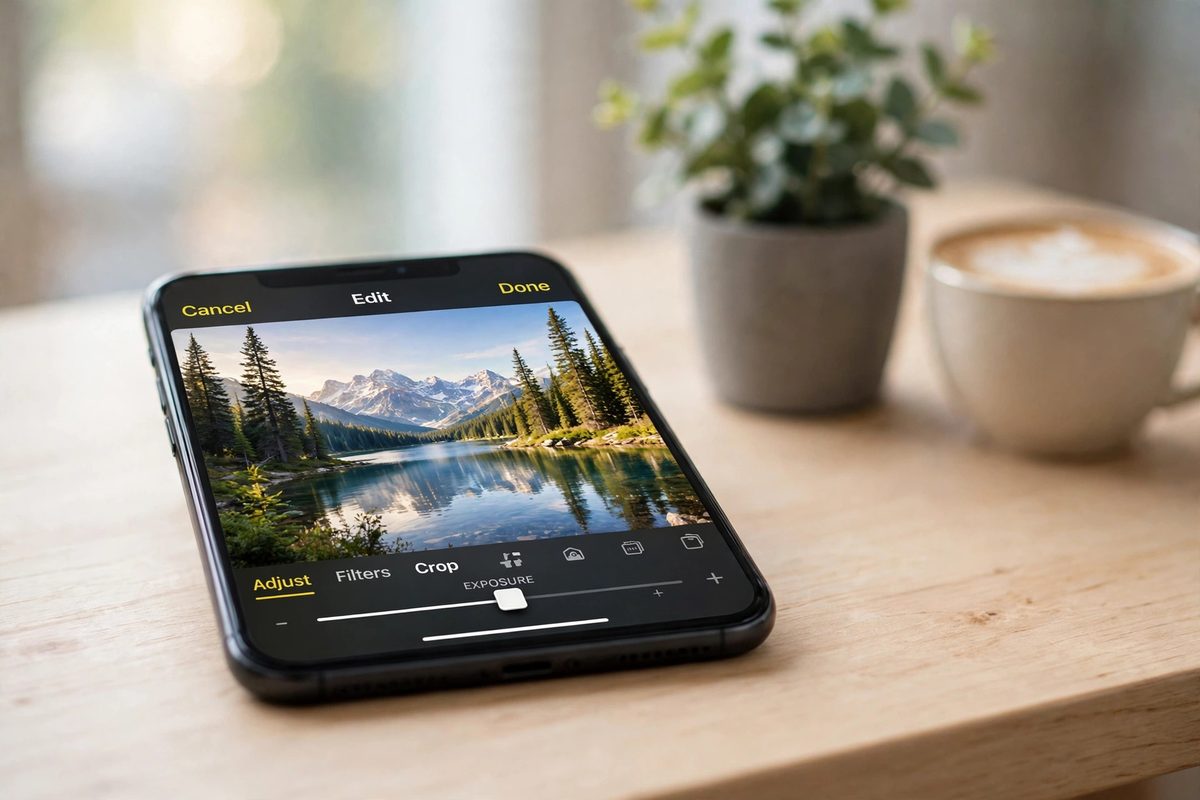
Here is a small thing your iPhone has been able to do for years that most people never discover: cut a person, a dog or a coffee mug clean out of a photo, background gone, no app and no subscription. It takes about five seconds once you know where it is.
The easiest way: long-press in Photos
This works on iPhone XS and later, running iOS 16 or newer.
- Open the Photos app and find the photo.
- Touch and hold the subject — the person, pet or object. After a second you will see a glowing outline and a small menu.
- Tap Copy, then paste it into Messages, Notes, Mail or any app that takes images. The pasted version has no background.
- Or tap Share and choose Save to Files. Saved this way, the cut-out is stored as a PNG with a transparent background, which is what you want for designs, thumbnails and stickers.
- Alternatively, tap Add Sticker in the menu to save it as a sticker you can reuse in Messages.
Best results come from photos where the subject stands out clearly from the background. A person against a plain wall works far better than a dog in long grass. If the outline looks rough around hair or fur, try a different photo rather than fighting the edges.
The fastest way for several photos: Files
On iPhones running iOS 17 or later, the Files app has a dedicated remove-background action:
- Open the Files app and find your image.
- Touch and hold the image, then tap Quick Actions.
- Tap Remove Background. The app creates a copy with the background removed — your original stays untouched.
This is the quickest option when you have several images to process, because you can do it from the file list without opening each photo.
The lazy way: make it a shortcut
If you do this often, build a one-tap shortcut:
- Open the Shortcuts app and tap + to create a new shortcut.
- Add the action Remove Background from Image (search for it by name).
- Add a Save File action after it, and choose where to save — for example, a folder in Files.
- Name the shortcut "Remove Background" and add it to your Home Screen.
Now you can share any photo to the shortcut from the Photos app, and a background-free copy lands in your chosen folder. Same on-device processing as the first method — just automated.
A few things worth knowing
- Save as PNG, not JPG. JPG does not support transparency — a background removed in JPG gets filled with white or black. PNG keeps the transparent background.
- Check the edges. Zoom in after removing the background. If you see a halo or rough edges, the original photo probably had a busy background — retake it against something plain if you can.
- Web images work too. In Safari, touch and hold an image on a webpage and tap Copy Subject to lift the subject out without downloading the whole picture.
- It is all on-device. The cut-out is processed on your iPhone, so your photos are not uploaded anywhere — worth knowing if the photo is personal.
For one photo, long-press it in Photos and save it to Files. For a handful, use the Files quick action. And if you do this every week, spend the two minutes building the shortcut — future you will be glad.
Comments
No comments yet — be the first to share your experience.